
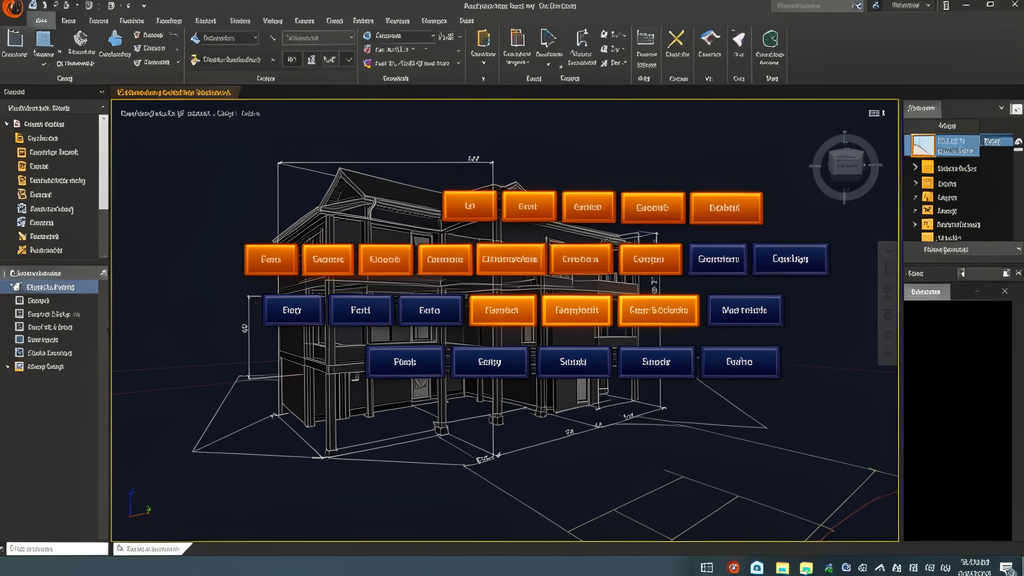
Complete guide to the essential AutoCAD commands organized by category · 06/05/2026 · 12 MIN READ · CANAL VIP
Why memorize AutoCAD shortcuts?
If you work on engineering or architecture projects in AutoCAD, you already know that time is money. A study by Autodesk indicates that a drafter spends, on average, 30% of their time navigating menus and looking for commands on the ribbon. By mastering AutoCAD keyboard shortcuts, you eliminate that waste and gain fluidity in drawing.
Consider this: each command triggered from the keyboard takes about 0.5 seconds, versus 3 to 5 seconds using the mouse to click the right icon. In an 8-hour workday, the savings exceed 40 minutes — which adds up to more than 3 hours per week and about 150 hours per year. It's like gaining a whole month of productivity without paying anything for it.
In this guide, we've gathered the 25 most useful AutoCAD shortcuts organized by category. These are commands that every professional — from the civil engineer to the architect, from the mechanical drafter to the interior designer — needs at their fingertips. For each shortcut, you'll find the command name, the keyboard shortcut, a description of what it does, and a pro tip to supercharge your use of it.
Ready to design faster? Let's get to the shortcuts.

?️ Drawing Shortcuts
Drawing commands are the foundation of AutoCAD. They create the geometric entities that make up your project. Mastering these shortcuts is the first step for any drafter.
1. LINE — Shortcut: L
What it does: Creates straight line segments connected between points. It is the most basic command and one of the most used in AutoCAD — virtually every drawing begins with lines.
Pro tip: Enable ORTHO mode (F8) while drawing lines to constrain the angle to 90° increments. For angled lines, use polar coordinates in the format @distance<angle. Example: @500<45 draws a 500-unit line at 45 degrees.
2. CIRCLE — Shortcut: C
What it does: Draws circles from a center point and a radius (or diameter). Useful for columns, pipes, axes of rotation, and circular elements in general.
Pro tip: Try the TTR (Tangent-Tangent-Radius) option by typing T after triggering C. This creates a circle tangent to two other entities — essential for fillets in mechanical and plumbing projects.
3. ARC — Shortcut: A
What it does: Creates arcs through three points (start, middle, and end). Widely used for contour lines, sidewalks, roads, and curved architectural details.
Pro tip: For greater precision, prefer the Start-Center-End method (type C after triggering the command). This lets you define the exact radius of the arc before the endpoints, ensuring a perfect match with other elements of the drawing.
4. RECTANGLE — Shortcut: REC
What it does: Draws rectangles by defining two opposite corners. Much faster than drawing four separate lines — the rectangle comes as a single polyline.
Pro tip: Use the Chamfer (C) or Fillet (F) option within the REC command to create rectangles with rounded or chamfered corners directly, without having to edit them afterward. Example: REC → F → 50 creates a rectangle with rounded corners of radius 50.
5. POLYLINE — Shortcut: POL
What it does: Creates a continuous sequence of line and arc segments treated as a single object. Essential for outlines, lot boundaries, walls, and any element that needs to be edited as a unit.
Pro tip: Within the POL command, switch between line and arc by typing A (Arc) for curved segments and L (Line) to return to straight segments. This lets you draw complex outlines (such as a lot with a curved frontage) in a single command.
✂️ Modify Shortcuts
If drawing is the beginning, modifying is where you spend most of your time. Editing commands let you refine, copy, reposition, and transform your drawings without starting from scratch.
6. MOVE — Shortcut: M
What it does: Moves objects from one point to another in the drawing. You select the objects, define a base point and a destination point.
Pro tip: Keep Object Snap (F3) enabled and select precise reference points (such as endpoints or midpoints) as the base. Combine it with ORTHO (F8) to move objects strictly horizontally or vertically.
7. COPY — Shortcut: CO
What it does: Creates copies of selected objects in new positions. The original stays intact.
Pro tip: After selecting the objects, enable multiple mode by typing M before defining the offset. This lets you distribute several copies in sequence without restarting the command — ideal for repeating columns, chairs, or workstations in a layout.
8. TRIM — Shortcut: TR
What it does: Trims (cuts) objects where they meet cutting edges defined by other objects. Indispensable for cleaning up intersections in floor plans.
Pro tip: Two tips that are game changers: (1) After triggering TRIM, press Enter twice — this uses all objects in the drawing as cutting edges, avoiding the need to select them manually. (2) Hold Shift during the command to reverse the function and extend (EXTEND) objects instead of trimming them.
9. EXTEND — Shortcut: EX
What it does: Extends objects until they meet a boundary edge defined by other objects.
Pro tip: Just like in TRIM, press Enter twice to use all objects as boundary edges. For plumbing and electrical projects, this dramatically speeds up aligning pipes and conduits to the walls.
10. OFFSET — Shortcut: O
What it does: Creates parallel copies of lines, polylines, arcs, and circles at a specified distance. Essential for double walls, lot outlines, concentric pipes, and roadway centerlines.
Pro tip: To create walls with a standard thickness (such as 15 cm for masonry), set the distance in OFFSET and keep clicking repeatedly — the command keeps the last distance used. Even better: create a specific layer for walls and configure the plot thickness before using OFFSET.
11. MIRROR — Shortcut: MI
What it does: Creates a mirrored (reflected) copy of objects about an axis defined by two points.
Pro tip: In symmetrical projects (buildings, mechanical parts, furniture), draw only half and use MIRROR to complete it. Before running it, AutoCAD asks whether you want to erase the original source — answer N (No) to keep both sides, or Y (Yes) if the intent is to reposition the object.
12. ROTATE — Shortcut: RO
What it does: Rotates objects around a base point by a specified angle.
Pro tip: Use the Reference (R) option by typing R after selecting the objects. You define a reference angle in the current drawing and the desired angle — AutoCAD calculates the rotation automatically. Perfect for aligning furniture or equipment blocks to angled walls without doing any math.
13. SCALE — Shortcut: SC
What it does: Resizes objects proportionally (or not) from a base point and a scale factor.
Pro tip: The Reference (R) option exists here too! Use SC → R to resize an object based on an existing measurement. Practical example: did you import a map image with no scale? Measure a known distance with DIST (shortcut DI), use SCALE with Reference, and type the correct value — the entire object is resized proportionally.
14. ARRAY — Shortcut: AR
What it does: Creates multiple copies of objects arranged in rectangular, polar (circular), or path patterns.
Pro tip: For structural projects with repeated columns, use a rectangular ARRAY and set the number of rows and columns with the correct spacing. For circular elements such as bolts on a flange, the polar ARRAY automatically distributes the items around the center. The latest version of AutoCAD (2025+) introduced an interactive interface that lets you adjust the parameters visually before confirming.
? Annotation Shortcuts
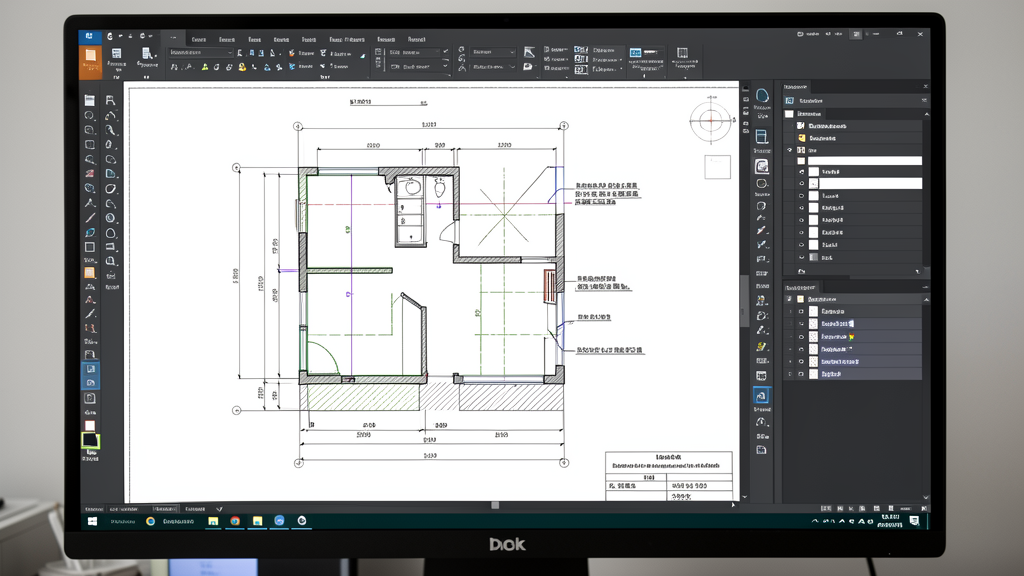
Drawing isn't enough — you have to communicate. Dimensions, text, and hatches turn abstract lines into complete technical documents that can be understood for construction.
15. DIM (Quick Dimension) — Shortcut: D
What it does: Triggers the DIMLINEAR dimensioning command, which creates horizontal or vertical linear dimensions. In AutoCAD 2024+, the D shortcut opens DIM (smart dimensioning), which automatically detects the most suitable dimension type.
Pro tip: Set up a custom dimension style (DIMSTYLE) before dimensioning. Define the text height, decimal precision, arrows, and units according to NBR 6492 (representation of architecture projects). Save it as ABNT_COTA and use it across all your projects to maintain consistency.
16. TEXT (Single-Line Text) — Shortcut: T
What it does: Creates single-line text — useful for short labels, tags, and identifying spaces.
Pro tip: The TEXT command is ideal for small, repetitive text such as column numbering (P1, P2, P3…) or room identification. For larger blocks of text, prefer MTEXT (shortcut MT), which offers paragraphs, rich formatting, and spell checking.
17. MTEXT (Multiline Text) — Shortcut: MT
What it does: Creates paragraphs of text with full formatting (font, size, color, alignment, lists, tables). Used for descriptive memos, technical specifications, project notes, and title blocks.
Pro tip: Define a standard text style (STYLE) with an Arial or Tahoma font and a non-annotative height for plotting text. For text in model space that needs to appear at scale in paper space, check the "Annotative" option in the text style — AutoCAD automatically adjusts the text size according to the viewport scale.
18. HATCH — Shortcut: H
What it does: Fills closed areas with hatch patterns (solid, lines, crosshatch, etc.) or color gradients. Essential for representing materials in sections (concrete, masonry, soil, thermal insulation).
Pro tip: In the hatch palette, use the "Pick internal point" option (clicking inside the area) instead of selecting objects — AutoCAD automatically finds the boundaries of the area, even with complex outlines. Create associative hatches (by checking the "Associative" option) so the hatch updates automatically if the boundary is modified. Configure separate layers for each type of material.
? Layer Shortcuts
Layers are the backbone of organization in any professional CAD project. Using shortcuts to manage layers avoids clutter and keeps the file lightweight.
19. LAYER (Layer Manager) — Shortcut: LA
What it does: Opens the Layer Properties Manager, where you create, delete, freeze, lock, and set the color, linetype, and plot thickness for each layer.
Pro tip: Create a layer template (.dwt) with all the layers you use in every project: WALLS, DOORS, WINDOWS, FURNITURE, DIMENSIONS, TEXT, PLUMBING, ELECTRICAL, STRUCTURAL. Use a consistent color scheme (e.g., white for walls, blue for plumbing, red for electrical). This ensures your layer shortcuts work in any new file.
20. LAYON (Turn On All Layers) — Shortcut: LAYON
What it does: Reactivates (turns on) all layers that were turned off, thawed, or unlocked. Essential when you temporarily turn off layers to focus on one element and then need to restore everything.
Pro tip: There are equally useful variations: LAYOFF turns off the layer of the selected object (without opening the manager), LAYISO isolates the selected object's layer by turning off all the others, and LAYFRZ freezes the layer. For those who manage complex DWG files with dozens of layers, these shortcuts save precious minutes per operation.
? Block Shortcuts
Blocks are reusable objects that keep your drawing organized, reduce file size, and ensure consistency across projects. Furniture, equipment, seals, and title blocks are classic examples.
21. BLOCK (Create Block) — Shortcut: B
What it does: Opens the Block Definition window to turn a set of objects into a reusable block. You define the name, insertion point, behavior (scale uniformly, explode, annotative), and description.
Pro tip: When creating blocks, always define a strategic insertion point (for example, the bottom center of a chair, or the bottom-left corner of a seal). This makes future placement easier. Also use descriptions so your team can quickly understand what each block represents. For dynamic blocks (with stretch, visibility, rotation), explore the Block Editor (shortcut BE).
22. INSERT (Insert Block) — Shortcut: I
What it does: Opens the Insert window to insert an existing block (from the current drawing or from an external DWG file) at the specified point.
Pro tip: Use DesignCenter (ADC), shortcut Ctrl+2, to visually browse all the blocks available in the current file or in referenced DWGs. You can drag and drop blocks directly onto the canvas without opening the INSERT window. Keep a centralized block library (.dwg) with standardized furniture and construction elements according to Brazilian standards.
? Navigation Shortcuts
Navigating efficiently is just as important as drawing. The faster you move around your project, the more productive you become.
23. ZOOM — Shortcut: Z
What it does: Triggers the ZOOM command with several options: Z → A = zoom all (shows the entire drawing), Z → E = zoom extents (fits to the limits of the drawn objects), Z → W = zoom window (zooms into a rectangular area defined by two clicks), Z → P = zoom previous (returns to the previous view).
Pro tip: For those using a scroll mouse, the middle scroll wheel already works as dynamic zoom — but the Z → A shortcut is irreplaceable when you get lost in the drawing and need to see everything at once. Combine Z → W with Object Snap to zoom in exactly on the area that contains a specific detail. Map Z + Enter + E as a macro in AutoCAD — many veteran drafters do this automatically dozens of times a day.
24. PAN — Shortcut: P
What it does: Lets you drag (pan) the drawing viewport without changing the zoom. Essential for navigating large areas without losing visual context.
Pro tip: Holding the middle mouse button (scroll wheel) pressed already temporarily activates PAN — it's the fastest way to navigate. The P shortcut is more useful in older versions or when the mouse scroll isn't working. In urban or infrastructure projects, combine PAN with ZOOM Extents periodically to keep your spatial orientation.
? Bonus: Extra Shortcuts Professionals Use Every Day
We round out the list with an extra shortcut that deserves an honorable mention:
25. PROPERTIES — Shortcut: PR (or Ctrl+1)
What it does: Opens the properties palette for the selected object, displaying and letting you edit layer, color, linetype, thickness, coordinates, area, length, and much more.
Pro tip: It's an indispensable diagnostic tool. Selected a line and don't know which layer it's on? Press Ctrl+1. Want to know the exact area of a closed polygon? Select it and check PROPERTIES. To edit multiple objects at once, select them all before opening the palette.
Other wildcard shortcuts worth memorizing:
- Ctrl+Z — Undo — your best friend in any software
- Ctrl+C / Ctrl+V — Copy and paste objects between drawings
- Ctrl+Shift+C — Copy with base point (essential for precision)
- E (ERASE) — Delete selected objects (or the Delete key)
- F8 — Toggle ORTHO mode (constrains angles to 90°)
- F3 — Toggle Object Snap (snap to precise points)
- F7 — Toggle grid display
- F9 — Toggle Snap (snap to grid)
- Ctrl+0 — Clean Screen (hides the ribbon for more drawing area)
- OSNAP (shortcut
OS) — Opens the Object Snap settings
? Complete Summary of the 25 Shortcuts
Below is a quick-reference table with all the shortcuts organized by category for you to print or save:
?️ DRAWING
Line · L · Creates straight line segments
Circle · C · Draws circles by center and radius
Arc · A · Creates arcs through three points
Rectangle · REC · Draws rectangles as a polyline
Polyline · POL · Creates continuous line/arc segments
✂️ MODIFY
Move · M · Moves objects
Copy · CO · Duplicates objects
Trim · TR · Cuts objects at cutting edges
Extend · EX · Extends objects to boundaries
Offset · O · Creates equidistant parallel copies
Mirror · MI · Creates a mirrored reflection
Rotate · RO · Rotates objects around a base point
Scale · SC · Resizes objects
Array · AR · Creates rectangular, polar, or path patterns
? ANNOTATION
Dim · D · Linear or smart dimensioning
Text (Single-Line) · T · Single-line text
Mtext (Multiline) · MT · Paragraph with rich formatting
Hatch · H · Fills areas with patterns or gradients
? LAYERS
Layer (Manager) · LA · Opens the Layer Properties Manager
Layon (Turn On Layers) · LAYON · Reactivates all turned-off layers
? BLOCKS
Block (Create Block) · B · Turns objects into a reusable block
Insert (Insert Block) · I · Inserts a block into the drawing
? NAVIGATION
Zoom · Z · Controls the view magnification
Pan · P · Drags the viewport without changing zoom
❓ Frequently Asked Questions
How do I customize AutoCAD shortcuts?
You can customize or create new shortcuts through the CUI (Custom User Interface). Type CUI on the command line, navigate to the "Keyboard Shortcuts" section, and edit the Shortcut Keys. You could, for example, create a shortcut like PP for PURGE or FF for QSELECT. Export your CUI as a .cuix file and share it with the team to standardize the office's shortcuts.
What's the difference between LINE and POLYLINE?
The LINE command creates independent segments (each segment is a separate object), while POLYLINE creates a continuous sequence where all the segments form a single object. The POLYLINE is better suited for closed outlines, walls, and objects that need to be edited as a whole. It also supports variable width and can be edited with PEDIT (shortcut PE).
Does the L shortcut for LINE conflict with the L shortcut for LAYER?
No. In AutoCAD, drawing commands such as LINE (L) and TEXT (T) have 1-letter shortcuts. LAYER is opened with LA (2 letters), so there's no conflict. If you type L + Enter, AutoCAD always interprets it as LINE.
Is it worth memorizing all these shortcuts?
Absolutely. Professionals who master AutoCAD shortcuts design 2 to 3 times faster than those who rely solely on ribbon clicks. Start by memorizing the 10 most used (L, C, M, CO, TR, O, Z, P, H, LA) and add new shortcuts as the need arises. After two weeks of consistent use, the shortcuts become automatic — your brain will "remember" that TR means "trim" without conscious effort.
Do the same shortcuts work in AutoCAD for Mac?
Yes, the vast majority of shortcuts are identical in AutoCAD for Mac. The main difference is that the Ctrl key on Windows is replaced by Command (⌘) on Mac. Some operating-system-specific shortcuts (such as switching windows) may vary, but the drawing and editing commands (L, C, TR, O, MI, AR, etc.) work exactly the same way.
Is there a shortcut to repeat the last command?
Yes! Press Enter or Space after finishing a command to repeat it immediately. It's the simplest and most underrated shortcut in AutoCAD. Very useful for OFFSET (repeating equal distances), TRIM (trimming multiple areas), and ARRAY (creating several patterns).
Which AutoCAD shortcuts are most used by Brazilian engineers?
In engineering firms in Brazil, the most used shortcuts are: LINE (L), TRIM (TR), OFFSET (O), COPY (CO), MOVE (M), DIM (D), HATCH (H), LAYER (LA), BLOCK (B), and ZOOM (Z). For infrastructure projects, EXTEND (EX) and ARRAY (AR) appear frequently. For architecture, MIRROR (MI) and SCALE (SC) are indispensable day to day.
Conclusion
Mastering AutoCAD keyboard shortcuts is the learning investment with the greatest return in productivity for any design professional. In this guide, we covered the 25 essential commands organized into six categories — drawing, modifying, annotation, layers, blocks, and navigation — which account for at least 80% of everything you do in AutoCAD day to day.
The key to memorization is deliberate practice: turn off the mouse for 30 minutes a day and force yourself to use only the keyboard. Start with 5 new shortcuts per week and, in less than a month, you'll be designing without needing to take your hands off the keyboard. The result? Fewer interruptions, more fluidity in drawing, and precious hours saved on every project.
Bookmark this article, print the summary table, and share it with your team. With these 25 shortcuts at your fingertips, you'll look back and wonder how you ever designed without them.
⬇ Check out CAD software on CanalVIPAlso read: AutoCAD LT 2027: What's New and Complete Guide · ZWCAD 2026: An Alternative to AutoCAD with a Permanent License · More articles on the blog
Disclosure: Some links on this page may be affiliate links. If you buy through them, CanalVIP may earn a commission at no extra cost to you. We only recommend tools relevant to the topic.
Also read: Check out the entire CanalVIP software catalog · More articles on the blog
© 2026 Canal VIP. All rights reserved.